A browser for each workspace
Hercus browser tools expose only the tabs belonging to the current workspace. Keep browser activity separate while other workspaces continue in parallel.
The Hercus workspace
Coordinate your agents, inspect the running app, investigate failures, and ship — without carrying context between tools. See how each part of Hercus connects the work.
Run Claude Code and Codex on different tasks in the same workspace, and keep other workspaces active while you switch between them. Task states and workspace activity counts show what is running, finished, or waiting for you.
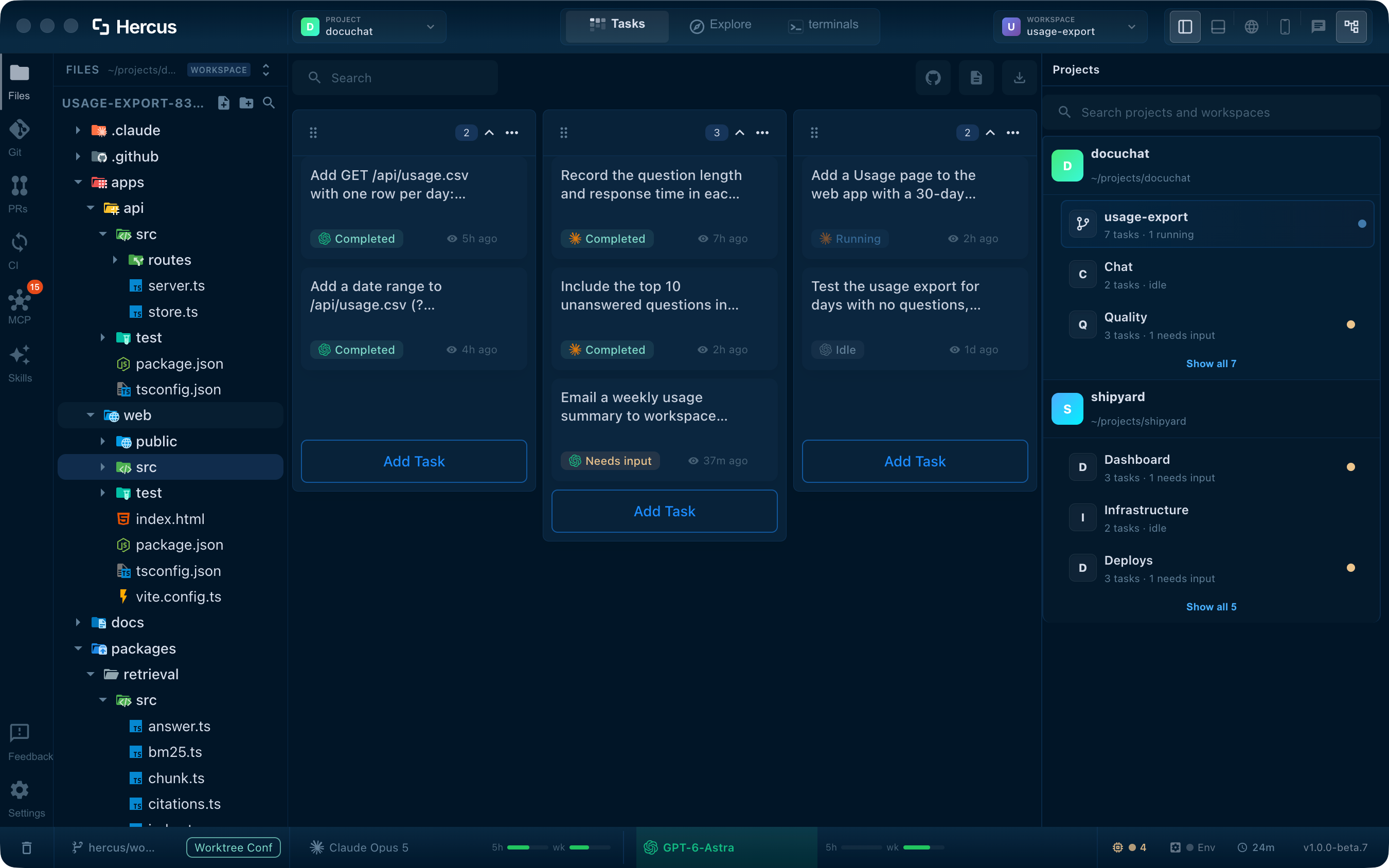
A shared view of what you're building
When the browser and coding task are separate, you keep moving screenshots, describing clicks, and rebuilding the state where the bug appeared. You and the agent investigating it can end up looking at different things.
Share the built-in browser with your agents and run iOS builds in the simulator. Try the flow yourself, let them investigate, and check the result in the same workspace.
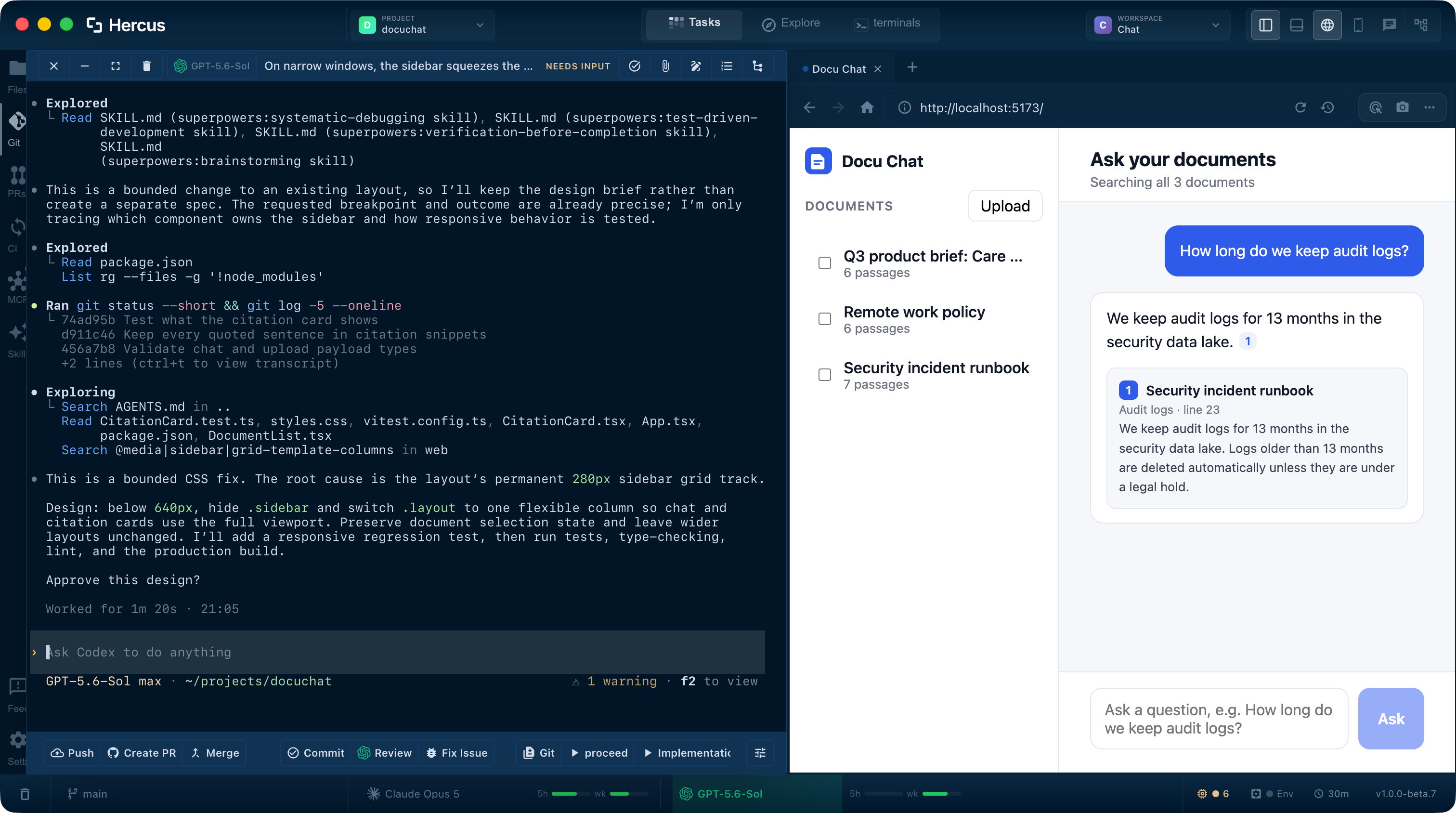
Hercus browser tools expose only the tabs belonging to the current workspace. Keep browser activity separate while other workspaces continue in parallel.
Use built-in DevTools to inspect elements, read console output, and follow network requests. Change the viewport to check how the interface behaves at another size.
Choose a simulator device and launch your build alongside the task. Interact with it directly, and annotate a capture to show the agent what you see. Requires macOS, Xcode, and an available simulator device.
Show the problem. Work through the fix. Check the result yourself — with the running app beside the task.
The terminal, built around the task
In a bare terminal, the small jobs around a task become separate work: keeping follow-ups in notes, preparing images elsewhere, and rebuilding context for another provider. Staying close to the code shouldn't mean doing all the coordination yourself.
Queue follow-ups, attach files, annotate images, and switch between Claude Code and Codex — with the controls you need around the task terminal.
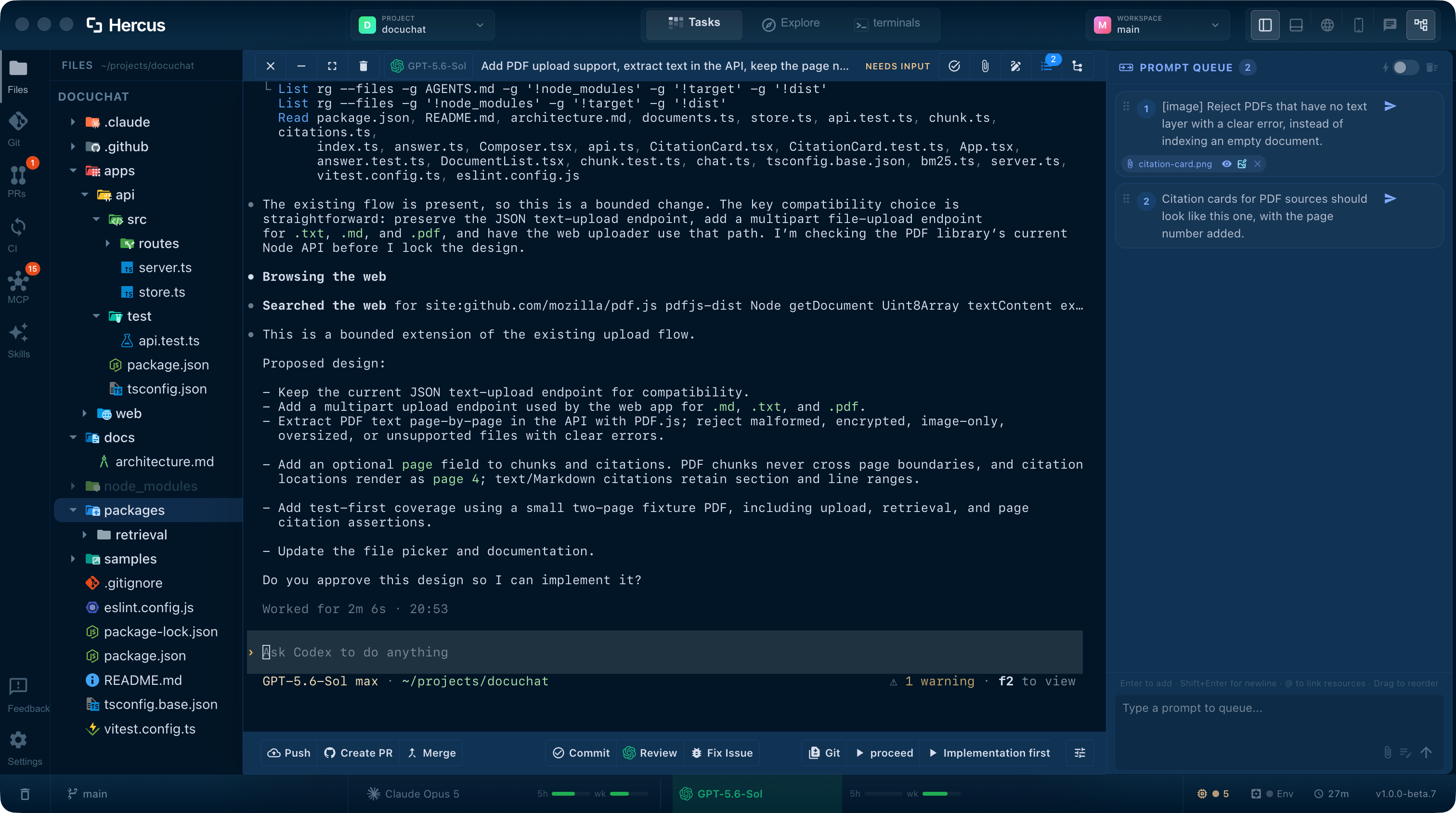
Capture follow-ups while the current turn is running. Keep their files with them, change the order, and choose manual delivery or auto-send when the task is ready for input.
Attach the relevant files and images, then mark up an image to pinpoint a change. You can also annotate an image that's already in a queued prompt.
Reply with selected terminal output, clear the current input, or interrupt a running turn from the terminal menu. Reuse shortcut prompts for repeat requests instead of typing them again.
The prompt, its evidence, and the next step stay close to the terminal — so you can keep directing the work.
Everyday Git, inside the workspace
The coding session, the diff, and the Git controls often live in different windows. You keep switching tools just to inspect a change, prepare a commit, or bring the branch up to date.
Review changed files, stage the work you want, and commit, pull, push, or sync without leaving Hercus. Git stays beside the work that created the changes.
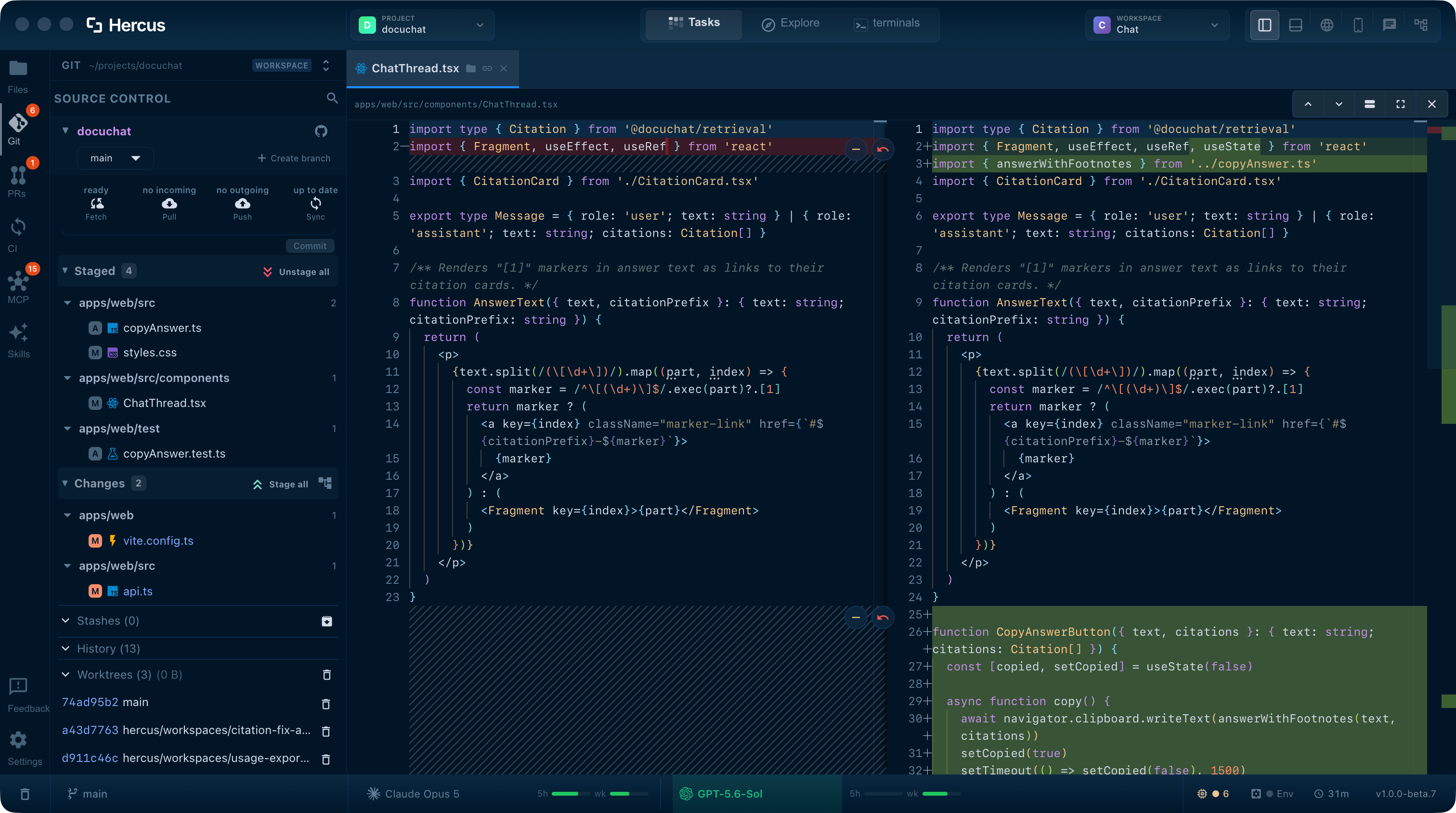
Stage or unstage a whole file or an individual text hunk. Keep unrelated edits out of the next commit while you review the rest of the working tree.
Stage or unstage changes, fetch, pull, or push with built-in shortcuts. Keep common operations within reach without typing out each command.
Generate a draft from the staged changes, then edit it before committing. You get a starting point for the message without handing over the final wording.
The diff and the Git actions live beside your coding work. Review what changed and prepare the next commit without leaving the workspace.
Pull requests, CI, and conflict resolution
The PR, workflow run, job logs, and conflict editor become separate stops. You keep switching tools and rebuilding context to answer one question: what still needs attention before this can merge?
Prepare and review pull requests, investigate CI runs, and resolve merge conflicts inside Hercus. The diff, the checks, and the work needed to get a change ready to merge stay together.
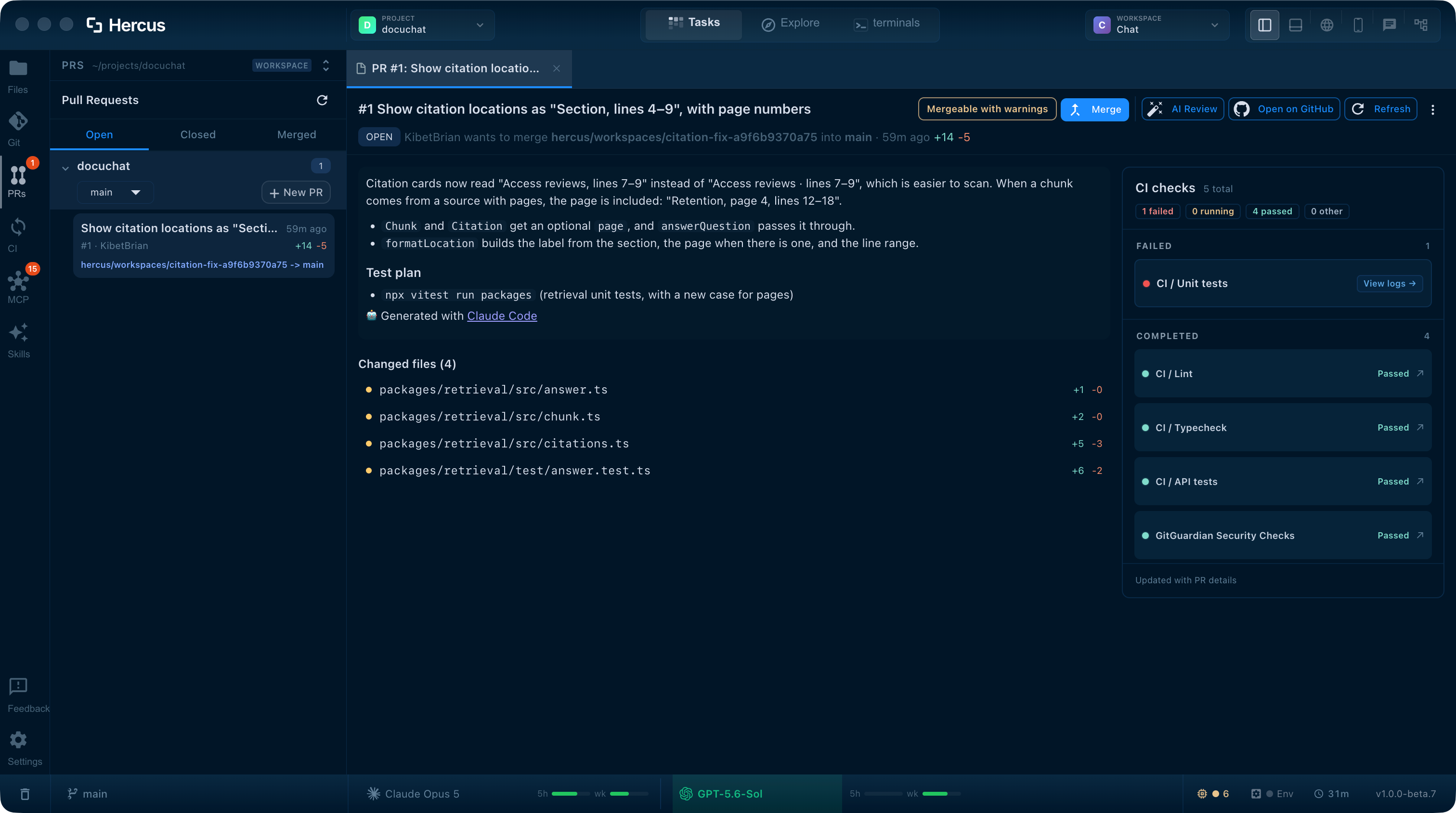
Ask the assistant to review the changes, surface potential bugs and risks, or suggest tests and fixes. Choose a provider and model, then ask follow-ups about security concerns or work outside the PR's scope. You assess the suggestions and decide what needs changing.
Inspect jobs, durations, line-numbered logs, warnings, and artifacts in the full run. Ask for a job summary, investigate failures, or explore performance improvements on successful runs too. The assistant can answer questions about more than just the failed step.
Resolve conflicts in an isolated local workspace using fetched copies of the branches. Review file and hunk decisions with the conflict assistant beside you. Freshness checks flag branch changes that need attention before you publish; resolving a conflict does not automatically merge the PR.
From PR preparation to the final merge, the work stays connected. You publish the branch, create the PR, rerun checks, and merge from the same place.
Your everyday commands, ready to run
The commands are routine; remembering the exact flags, opening the right directory, and tracking which terminal runs what is still manual. That startup ritual sits between you and the change you wanted to make.
Keep dev servers and recurring scripts saved with a name and working directory. Run them from Hercus, see their output, and return to the same setup without searching shell history.
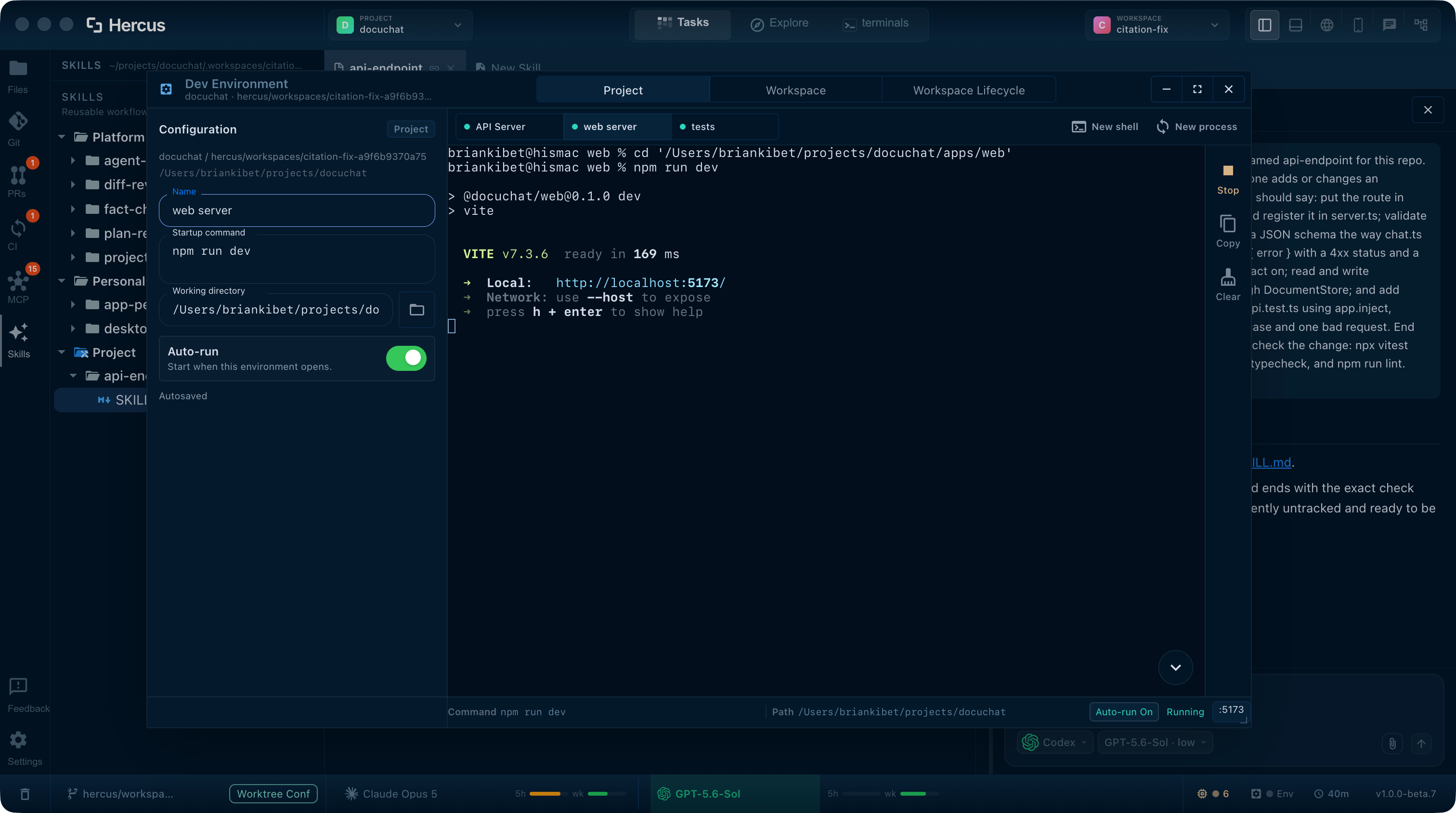
Store the command, its name, and its working directory together. Keep the frontend and API in their own directories, and update the settings when your setup changes.
Keep process tabs and terminal output inside Hercus. Running, stopped, and failed states help you find what needs attention, with controls to run or stop the selected process.
Save repeat shell commands for a workspace, a project, or all terminals. Give them clear names and run them from the terminal's Saved Commands menu.
Save the routine once. Return to named commands you can run, inspect, and adjust — without rebuilding the same terminal setup.
Your tools and know-how, ready for the work
You keep looking up tool settings and repeating the same guidance. Switching projects or providers adds another place to check whether the right connection and instructions are available.
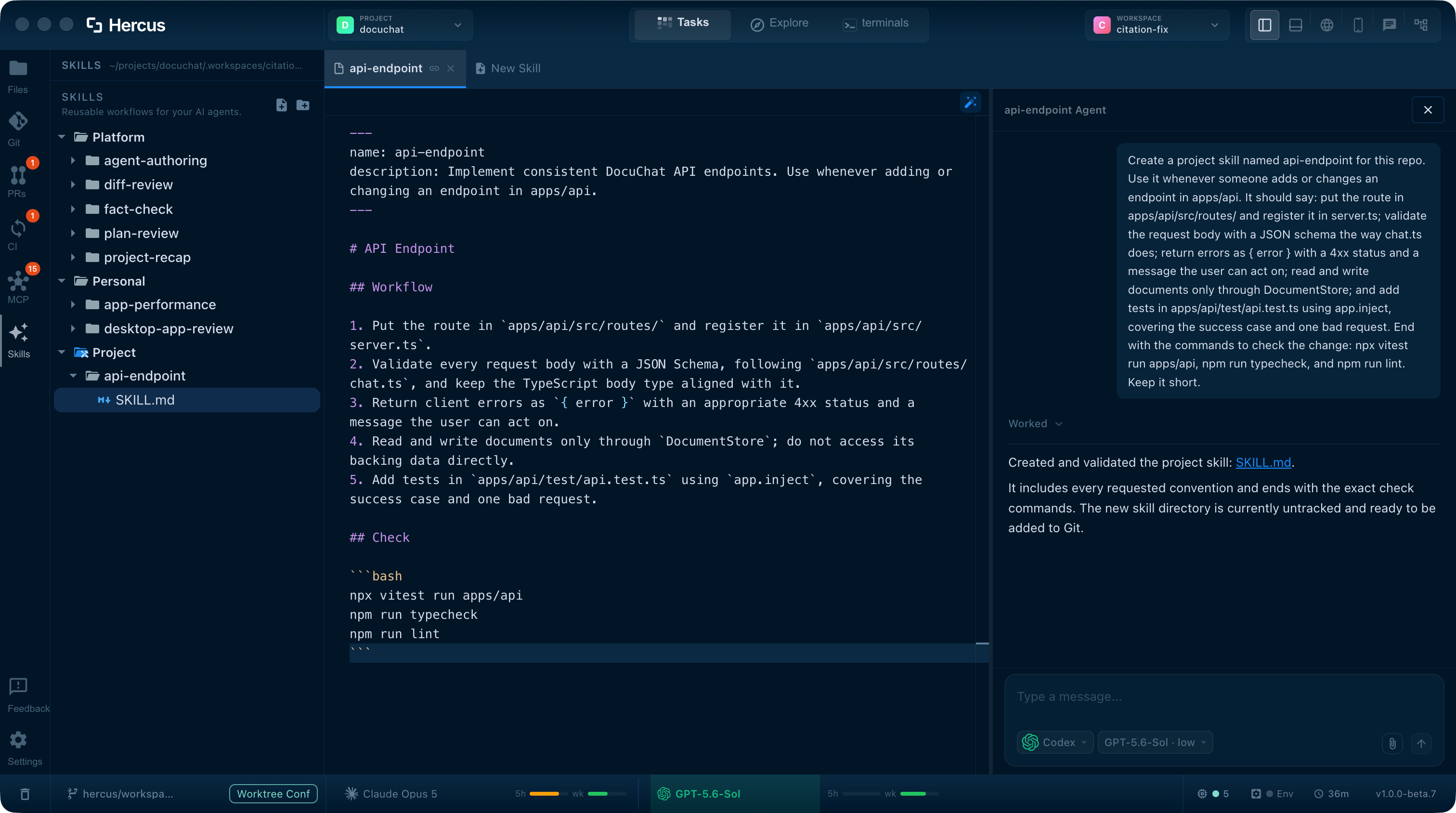
Connect external tools through MCP and turn repeat instructions into reusable skills. Manage both inside Hercus, so your setup and way of working don't live in scattered config files and old prompts.
Add a local command or a server URL, with the environment variables or headers it requires. Enable or disable configured servers and return to their settings when your setup changes.
Test configured servers, inspect reported health and errors, and open logs when available. Authentication-required notices distinguish a sign-in step from a working connection; some services require authentication through Claude Code or Codex.
Organize your personal and project skills into groups, rename them as workflows change, and open their files to see the instructions you're reusing. Your own guidance stays separate from Hercus's read-only built-in skills.
Keep tool connections manageable and turn useful instructions into something you can reuse. Start the next task with less setup to repeat.
Keep every workstream in view
Without Hercus, you scan your terminal tabs, find the right conversation thread, remember which branch you were on, and re-orient. The state you need is scattered across windows — and the project instructions you wrote last time aren't where this agent can find them.
Keep repositories, agent sessions, terminals, and review work organized. Return to the right project without hunting through unrelated windows.
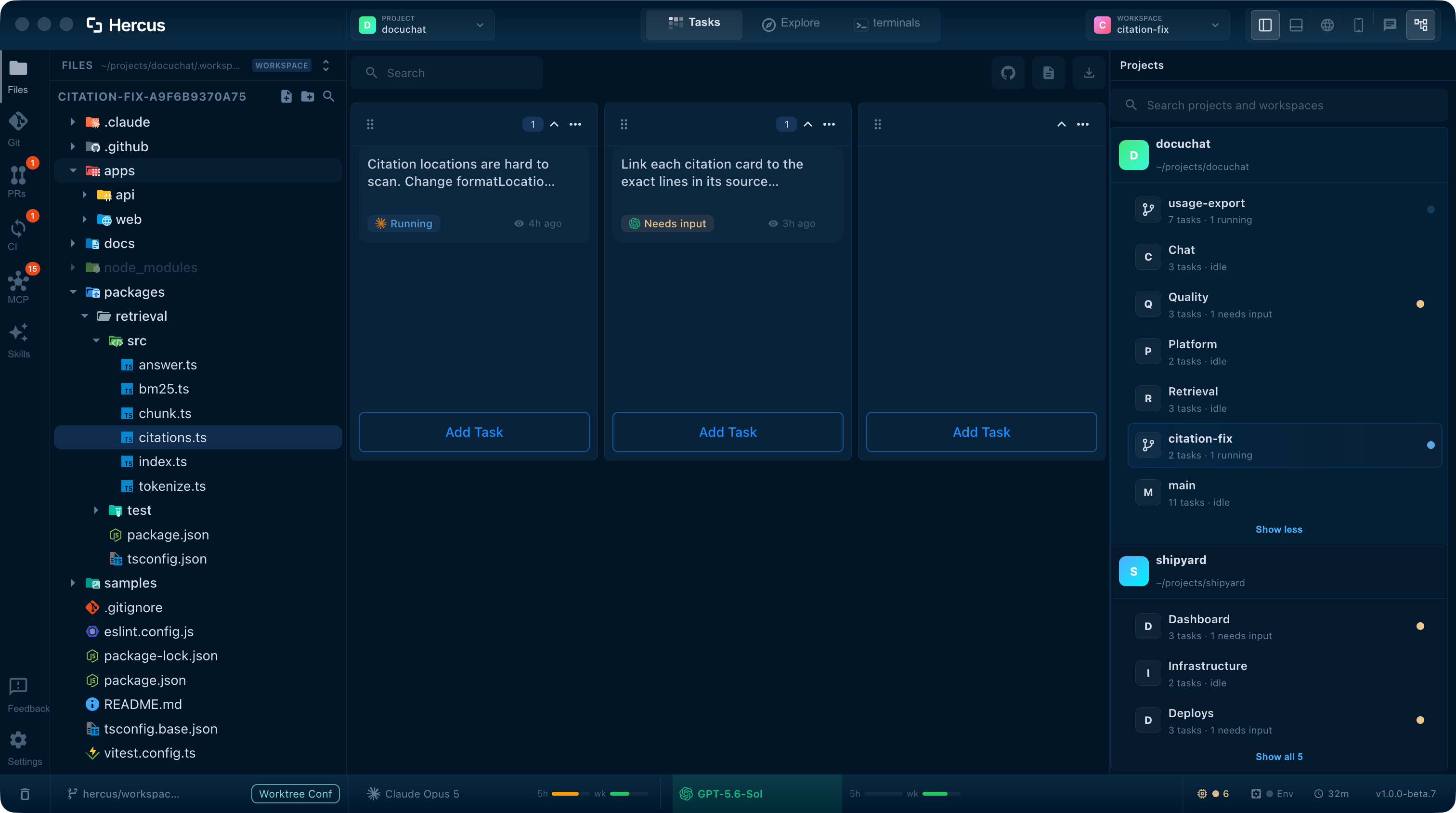
Project instructions, reusable skills, and configured tools stay organized around the work. The next agent session gets relevant context without another search through your notes.
Prepare a draft task from a GitHub issue or continue an eligible Claude Code or Codex CLI conversation. You don't have to start from scratch every time.
Create separate workspaces with their own Git worktree and branch. Independent changes get isolation without manual branch management in the terminal.
You return to the right project and pick up where you left off. The context you built last time is already waiting.
Fits the tools you already use
Connect your own Claude Code or Codex access. Bring in GitHub issues, project guidance, and configured tools as your workflow needs them.
7-day free trial No credit card required